Fixing a Broken Elementor Site After a Plugin Update
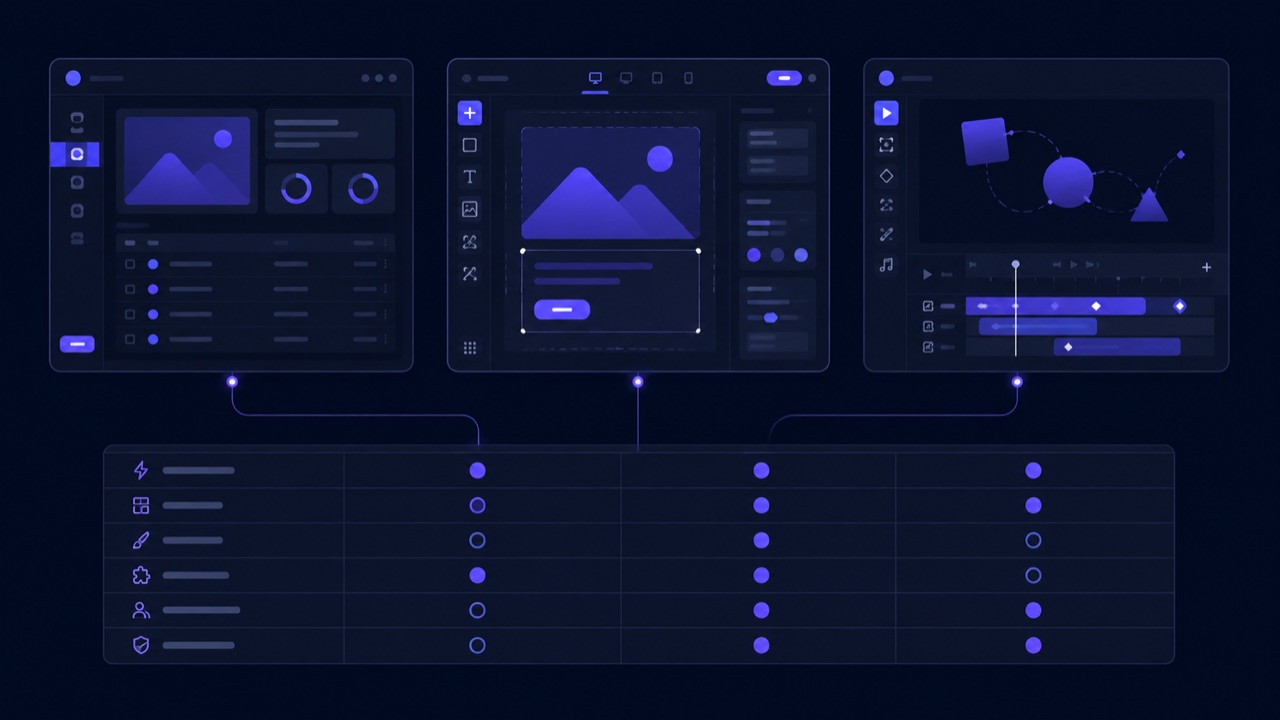
Elementor is not one plugin, it is a stack. When it breaks right after an update, the fix is almost always finding which piece of that stack moved — not rebuilding anything.
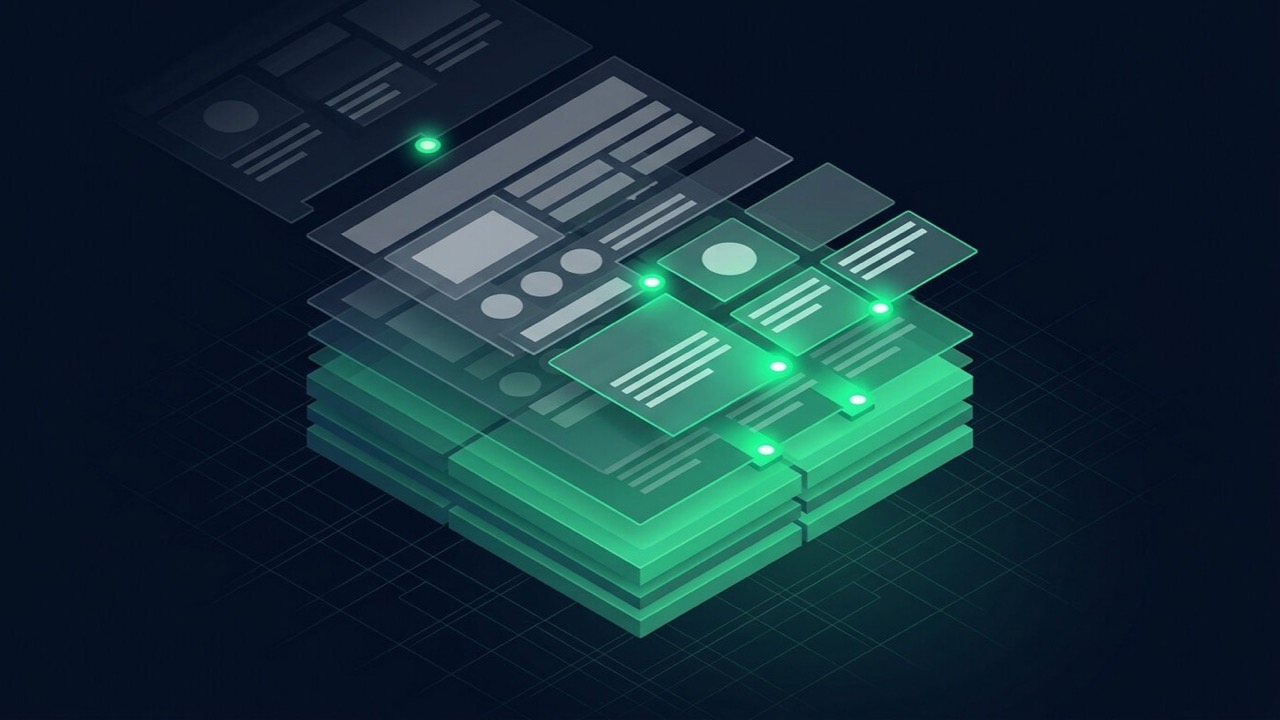
Elementor is not one plugin, it is a stack: Elementor core, often Elementor Pro on top, then one or two add-on libraries, all sitting inside a theme built at a specific point in time. Each piece updates on its own schedule, and the editor itself loads a fairly heavy JavaScript and PHP bundle that is sensitive to any of them drifting out of step. "It broke right after an update" almost always means one part of that stack moved and another did not follow — which is good news, because it means the fix is usually narrow.
Prefer to work through this interactively rather than read the whole thing? The free WordPress Plugin Conflict Diagnostic walks the same triage as a step-by-step checklist and ends in a specific next step.
Why Elementor breaks after updates
Before diagnosing anything specific, it helps to know the usual suspects, roughly in order of how often I actually find them:
- Elementor core and Elementor Pro, or an add-on library, updated out of step with each other.
- A cached copy of the old CSS or JS file is still being served after the update, so the browser shows stale styling.
- A theme function or another builder plugin is hooking into the same area Elementor controls.
- A widget or template references content — an image, a dynamic field — that was since deleted or renamed.
- The server hit a PHP memory or execution-time limit while the editor tried to load.
- A nulled or expired Elementor Pro licence is silently blocking template library access.
First: check what actually changed
Before touching anything, spend a few minutes narrowing it down:
- What updated right before it broke? Check the plugins page sorted by last-updated, or your host's update log, for Elementor core, Elementor Pro, an add-on library, the theme, or WordPress itself.
- Is it happening for everyone, or just you? A hard refresh or an incognito window rules out your own browser cache before you go any further.
- Are the versions actually compatible? Elementor core, Elementor Pro and any add-on library need to be on versions that support each other — check each plugin's changelog against what you are currently running.
The editor will not load, or spins forever
Usually a script conflict, a PHP resource limit, or a corrupted post revision.
- Temporarily raise the PHP memory limit — many hosts default to 64–128 MB, and Elementor recommends 256 MB or higher — then retest.
- On staging, deactivate other plugins one at a time and retest the editor after each, rather than deactivating everything at once and guessing which one mattered.
- Check the browser console for a JavaScript error. A genuine script conflict usually names a specific file, which traces straight back to the plugin causing it.
- If one specific page will not open but others do, suspect a corrupted revision or a widget on that page referencing content that no longer exists, rather than a site-wide conflict.
Widgets missing or showing an error
Almost always an add-on library — Essential Addons, Crocoblock, PowerPack — that updated out of step with Elementor core, or got deactivated by accident during a bulk update.
- Confirm the add-on plugin is actually still active, and check its changelog against your current Elementor core version for a documented compatibility fix.
- If a widget references content that has since been deleted or renamed — an image, a dynamic field, a saved template — that surfaces as a missing or broken widget too, so check the widget's own settings before assuming it is purely a version issue.
- Match every active add-on's version to what the current Elementor core actually supports, rather than updating one library and leaving the rest behind.
Layout breaks on mobile after an update
A column stacks wrong, spacing collapses, or a section overlaps on smaller screens.
- Check the specific breakpoint in Elementor's responsive settings before assuming the whole section needs rebuilding — most of these are a single control (padding, column gap, a "hide on mobile" toggle) that shifted or reset during the update.
- Confirm you are testing against the actual breakpoint values Elementor is using, not just resizing the browser loosely. Tablet and mobile breakpoints are editable and can quietly drift out of sync with what you think you are testing.
- Rebuilding a section from scratch should be the last resort, not the first move. Most mobile breaks after an update are one setting away from fixed.
Pro license or template library not loading
- Check the licence first. An expired or nulled Elementor Pro licence can silently block template library access without always throwing an obvious error message.
- Clear any page or object cache. A cached copy of the old CSS or JS is a common reason styling still looks stale even after the underlying issue is already fixed.
- If a Theme Builder template is not applying where it should, check its display conditions before assuming Elementor is broken — a condition can quietly stop matching after a URL structure or post type changes elsewhere on the site.
If the editor specifically will not open at all, this page goes deeper on that one symptom — and if it opens but the canvas stays completely blank rather than stuck loading, that's a distinct failure with its own fix.
Always test on staging first
Deactivating plugins, changing PHP limits, or updating a version to test a fix belongs on a staging copy first — checked across desktop, tablet and mobile breakpoints, not just the editor preview — before any of it touches the live site.
When it is not a quick fix
If you have matched every version, cleared every cache, and it is still broken — or the same failure comes back after the next update — that usually means the actual conflict was never isolated, not that Elementor itself is unreliable. Each guess-and-retest cycle is time the site stays broken.
If that is where you are, see Elementor bug fix for how a proper diagnosis runs, and what it costs to get a straight answer.