WordPress Malware Removal: What to Do When Your Site Gets Hacked
Most of the damage from a hacked WordPress site happens after the hack, from the wrong first move. Here is the order that actually closes it for good.
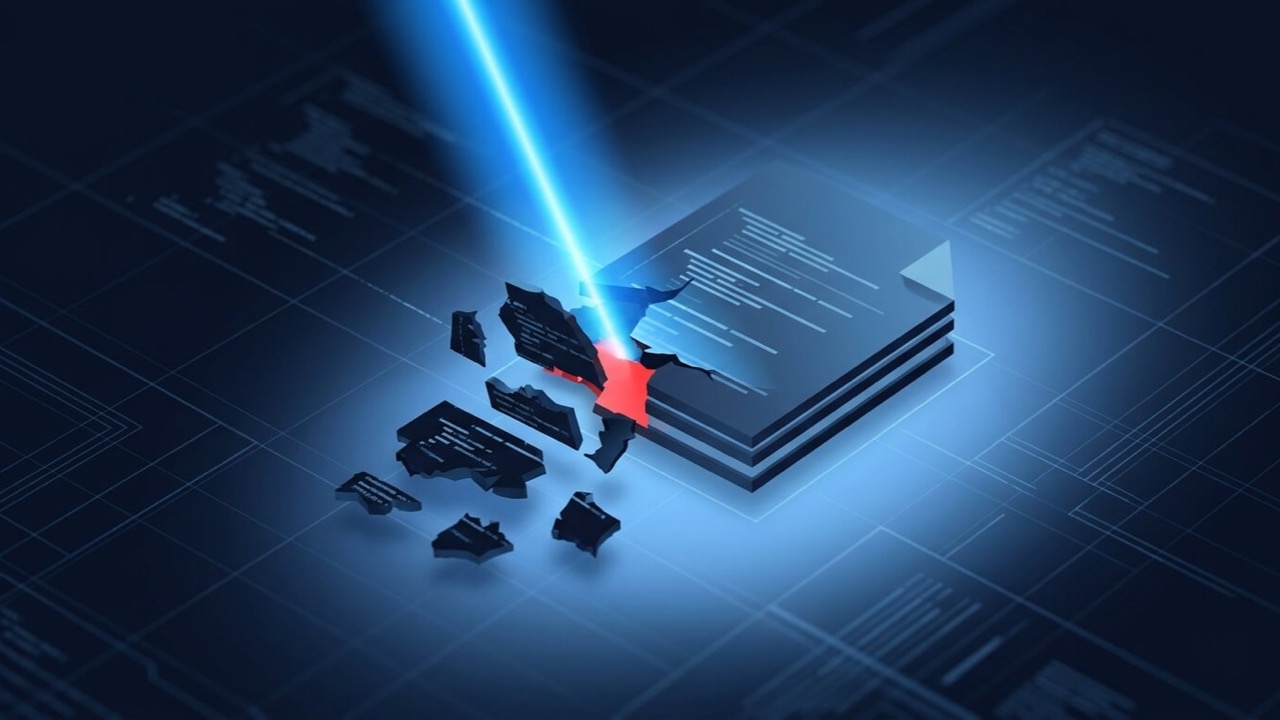
Nobody hacks a WordPress site by hand. Bots scan millions of sites at once for a specific, already-known weakness — an unpatched plugin, a reused password — and once they are in, the first thing they usually plant is a backdoor, so they can get back in even after the obvious symptom is gone. That last part is why most DIY clean-ups fail within a week: the visible mess gets removed, the actual access does not.
Three mistakes that make it worse
Before the steps, the three things I see most often that turn a one-hour clean-up into a multi-day one.
- Deleting and reinstalling at random, before backing anything up. This destroys the evidence you need to find the entry point, and if the reinstall is not thorough it leaves the backdoor in place untouched.
- Restoring an old backup and calling it fixed. If the vulnerability that let the attacker in is still open — the same outdated plugin, the same leaked password — a restored site gets reinfected within hours, sometimes minutes.
- Removing only the visible symptom. A redirect script or a defaced homepage is the thing you notice. The backdoor that put it there is usually a separate file, planted first, and it survives a surface clean every time.
How to tell it is actually a hack
A compromise is not always obvious. These are the signs that mean it is time to start the process below rather than troubleshoot something else:
- Google or your host has flagged the site — a red warning page, a Safe Browsing notice, or a suspension email.
- Spam pages, redirects or pop-ups appear that nobody on your team added, often in an unfamiliar language or pushing pharma or gambling content.
- The site is suddenly slow, partially defaced, or will not load at all — malware often runs resource-heavy scripts in the background.
- There is an administrator account you do not recognise, or you have been locked out of wp-admin entirely, which usually means access has existed for a while, not just started.
Step 1: Lock the doors first
Before touching a single file, stop the attacker's access from continuing while you work. Put the site in maintenance mode or restrict it with an .htaccess password rather than deleting anything. Then, from a device you trust:
- Change the WordPress admin password for every user, and remove any admin account you do not recognise.
- Change your hosting or cPanel password, and your database password.
- Change FTP/SFTP and SSH credentials if you use them.
This does not fix anything yet, but it stops the attacker watching you clean up in real time, which happens more than people expect.
Step 2: Back up the infected site
Counter-intuitive, but back up the site as it currently stands — files and database — before you remove anything. Two reasons: it is a safety net if clean-up breaks something you needed, and it preserves file modification timestamps, which are usually the fastest route to finding when and where the attacker first got in.
Step 3: Scan for every infected file
Do not eyeball the file list and assume you have found it all. Malware on WordPress is almost never in one place. Run a proper scanner — Wordfence, MalCare or Sucuri all do this well, and check the usual hiding spots specifically:
- wp-content/uploads/ — this folder should never contain a
.phpfile. If it does, that is almost always the attacker's shell. - Theme
functions.phpandwp-config.php— common targets for injected code because they load on every request. - The database, specifically the
wp_optionsandwp_poststables — injected redirect scripts and spam content live here as often as in files. - Modified core files. If you have WP-CLI access,
wp core verify-checksumscompares your install against WordPress's own checksums and flags anything altered in seconds.
Step 4: Find the actual entry point
This is the step people skip, and it is why sites get reinfected within days of a clean-up. Work through this list until one of them explains it:
- An outdated plugin or theme with a publicly known vulnerability — check version numbers against changelogs around the infection date.
- A nulled or pirated premium plugin. Delete these outright; there is no legitimate copy to fall back to, and malicious code is often built in from the start.
- File or directory permissions left too open, letting an attacker write new files directly.
- A weak or reused admin password, particularly one that has appeared in a prior data breach.
- A previous clean-up that removed the symptom but never found the backdoor — sort files by modification date and look for anything touched outside a normal update or edit window.
Sorting the whole file tree by modification time, then looking for a cluster of changes on one date, is usually the fastest way to see the actual moment of compromise rather than guessing.
Step 5: Clean and rotate everything
Replace, do not patch. Download fresh copies of WordPress core, and reinstall plugins and themes from their official source rather than hand-editing infected code, unless you know precisely what you are removing. Then:
- Rotate every credential again — WordPress users, database, hosting, FTP/SSH — on the assumption the attacker may have captured what you set in step 1.
- Regenerate the WordPress security keys and salts in
wp-config.php, which invalidates any stolen session cookies. - Remove any administrator account that is not one of yours, even if it looks legitimate.
Step 6: Get off any blacklist
A clean site does not automatically clear a Google Safe Browsing warning or a host suspension — you have to ask. Once the site is genuinely clean:
- Use Search Console's Security Issues report to request a review once you can confirm the flagged pages are gone.
- Contact your host directly if they suspended the account; most want proof of a clean scan before reinstating it.
- Check a multi-engine tool like VirusTotal for any other blocklist still showing the domain, and file a removal request with each one.
These reviews can take anywhere from a few hours to several days. There is no way to speed it up beyond making sure the site is actually clean before you ask.
Harden it so this does not happen twice
- Update WordPress core, plugins and themes immediately, and leave automatic updates on for minor releases.
- Add a firewall and login protection — rate limiting and two-factor authentication stop the brute-force attempts that caused this in the first place.
- Delete unused plugins and themes entirely rather than just deactivating them; inactive code left on disk is still a target.
- Fix file permissions to a sane baseline — directories at 755, files at 644, and
wp-config.phptighter still if your host allows it. - Put something like Cloudflare in front of the site to absorb the automated scanning traffic before it ever reaches WordPress.
- Set up automated, off-site backups, so the next incident is a restore rather than a forensic exercise.
That list covers the essentials. If you would rather have all of it audited and done properly in one pass — whether this site was just cleaned or has never been hacked at all — that is what WordPress Security Hardening is for.
When to stop and call someone
A single injected redirect script, caught early, is realistically a DIY job for someone comfortable in a file manager and a database. A backdoor buried in the database, repeated reinfection after a clean-up, or a blacklist that will not clear are all signs the actual entry point has not been found yet — and every hour spent guessing is an hour not spent finding it. I would rather tell someone that early than let them keep patching the same hole.
If that is where you are, see WordPress malware removal for the full process, scope and what it costs to get a straight answer.